Orbula Manual
Orbula, a Garmin Connect IQ watch face by Pixel Pathos
Project maintained by PixelPathos Hosted on GitHub Pages — Theme by mattgraham
Versions
There are two versions of Orbula available in the Connect IQ store. There is no difference in features between the two versions.
| Garmin Pay | KiezelPay | |
|---|---|---|
| Description | First-party payments handled by Garmin. RECOMMENDED, if supported by your region and bank. | Third-party payments handled by KiezelPay. |
| Store URL | Garmin Pay store page. | KiezelPay store page. |
| Supported regions | Please see this list of regions supported by Garmin for first-party purchases. | All regions supported by PayPal, or your chosen payment method. |
| Payment methods | By card added to Garmin Pay, from a smaller range of banks. | PayPal (free). Also by card, from a wider range of banks ($0.30 fee). |
| Price | Cheaper (exact price varies by region). | More expensive, because KiezelPay charges developers nearly double the fee compared to Garmin. |
| Purchase process | Payment is required before download. Garmin will send an e-mail once your payment has been processed. Orbula will then download and install automatically the next time your watch syncs. | Download is free. You will then have a 24-hour trial. When the trial ends, you will be shown a 6-digit code and URL you can use to make the purchase via the KiezelPay site. Within 5 minutes of completing the purchase, Orbula will unlock. |
| Purchase type | One-off (not subscription). Purchase is forever, and tied to your Garmin account. | One-off (not subscription). Purchase is forever, and tied to your Garmin account. |
| Refunds | Please contact Garmin directly to request a refund within 48 hours of purchase. | Please follow these instructions to request a refund from KiezelPay within 30 days of purchase. |
If you’re considering a refund, please contact me first via the App Support link on the appropriate store page, as I would like to try and make things right.
Overview
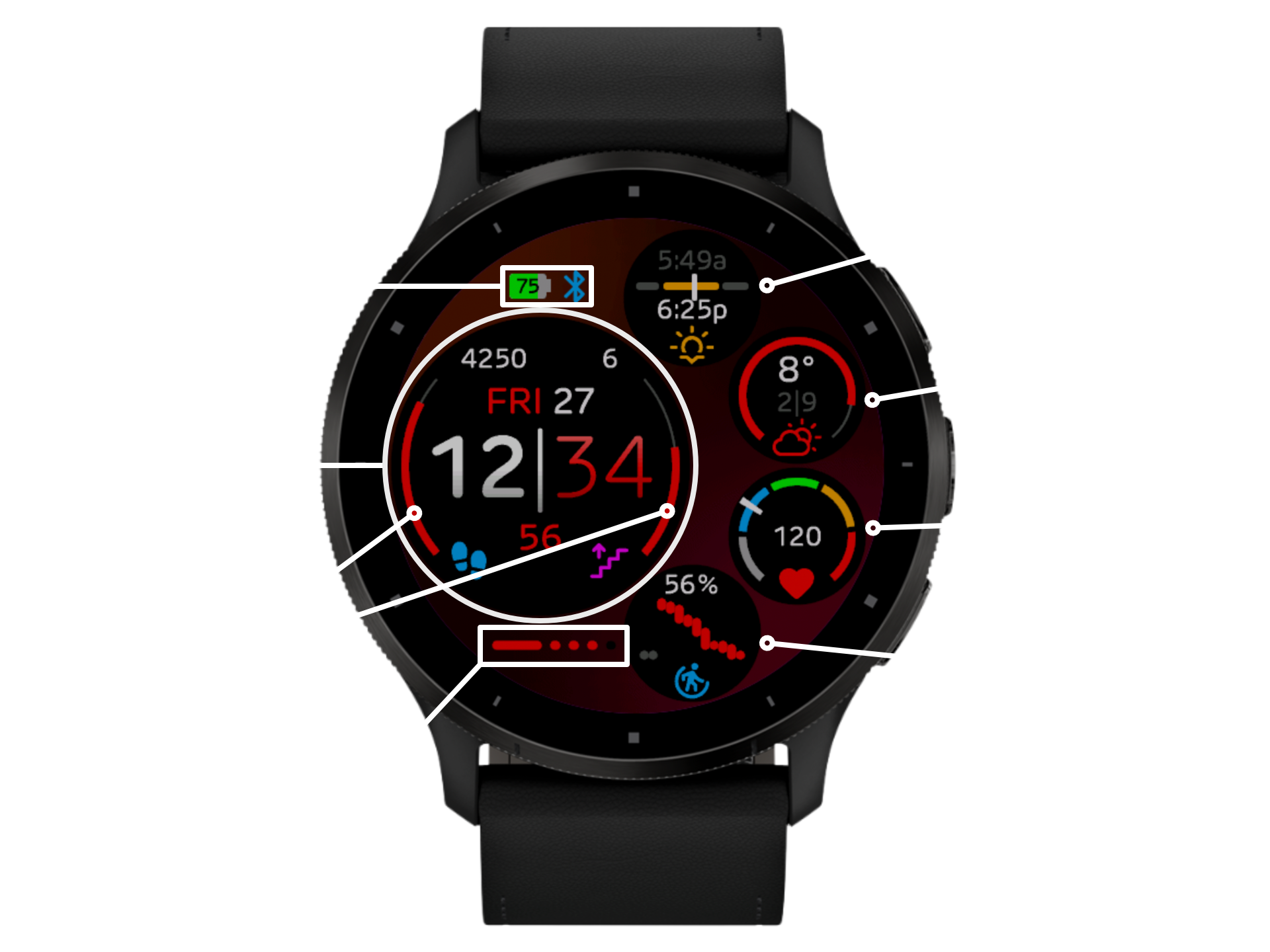
Orbula is designed to be highly customisable. Here are some of the things you can change:
- The number of “satellite” dials from 3 to 6;
- The position of the time dial;
- The theme, background and icon colours;
- The time format (12/24 hour, and leading zero);
- The font and colour of the hours, separator and minutes, and the type of separator;
- The data shown on the side meters, dials and line meter;
- The icons;
- The brightness of the always-on display (AMOLED only).
Settings menu
The easiest way to customise Orbula is by using Orbula’s comprehensive settings menu on your watch. How you access this menu varies slightly between different watch models. Here is the relevant manual page for some popular models:
- epix™ (Gen 2) Standard/Pro
- fēnix® 6
- fēnix® 6 Pro
- fēnix® 7 Standard/Solar/Pro
- fēnix® 8
- Forerunner® 165
- Forerunner® 265
- Forerunner® 965
- Venu® 2
- Venu® 2 Plus
- Venu® 3
- Venu® 4
- vívoactive® 5
- vívoactive® 6
Appearance
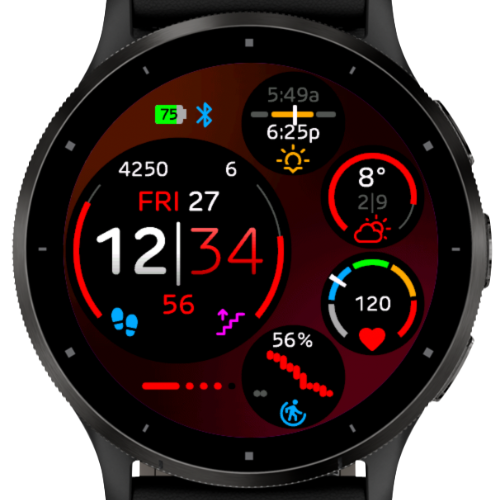
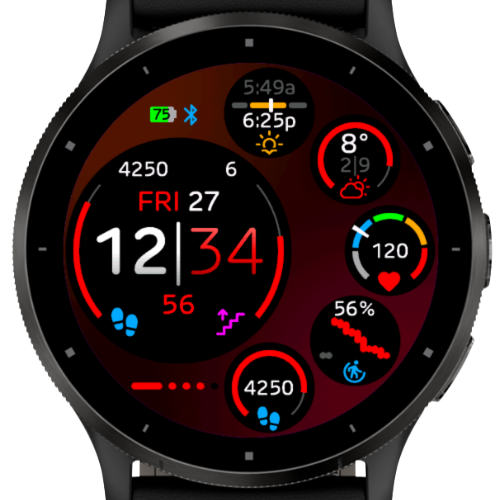
| Time + 3 Dials | Time + 4 Dials | Time + 5 Dials | Time + 6 Dials | |
|---|---|---|---|---|
| Top | 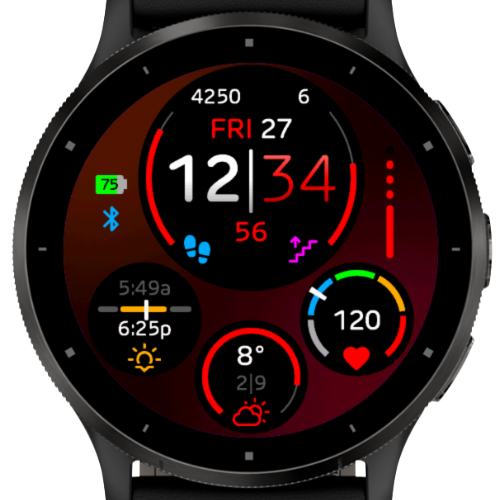 |
 |
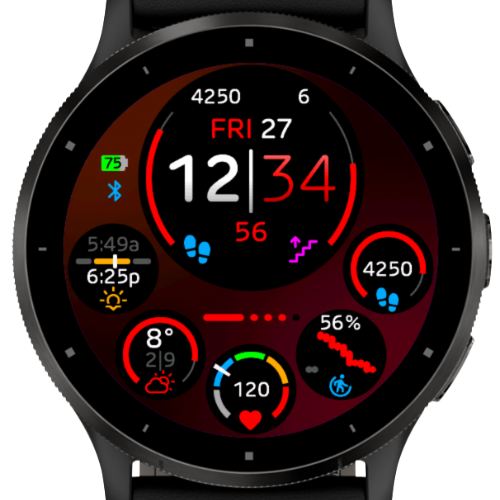 |
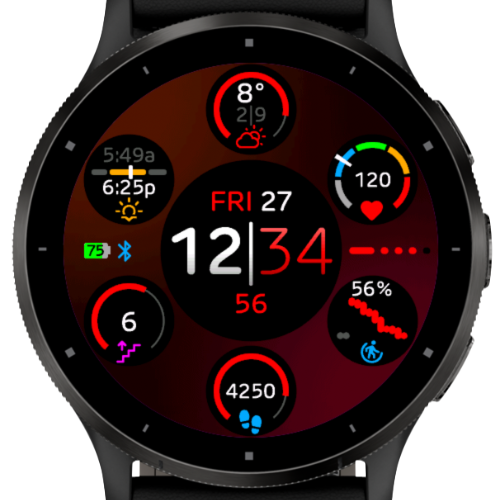 |
| Right | 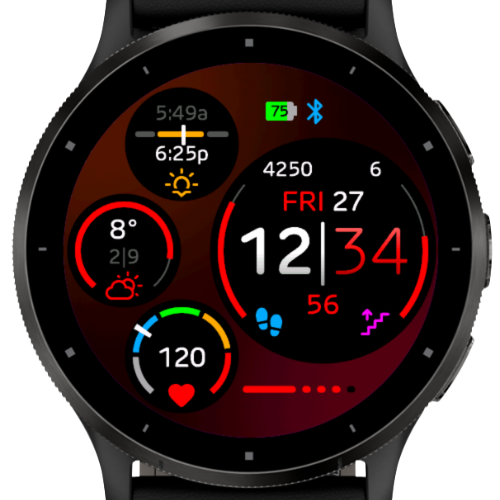 |
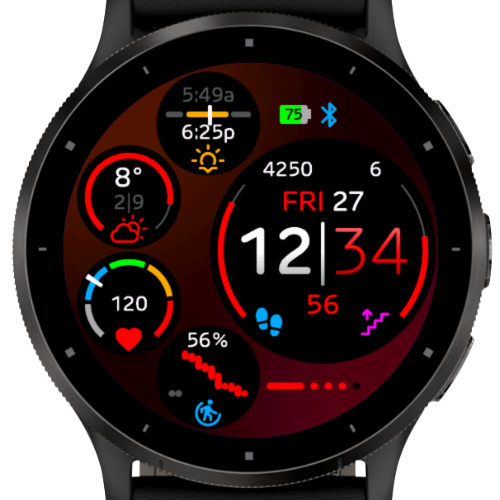 |
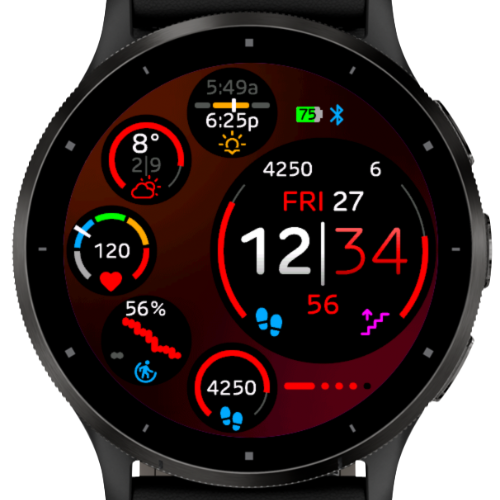 |
|
| Bottom | 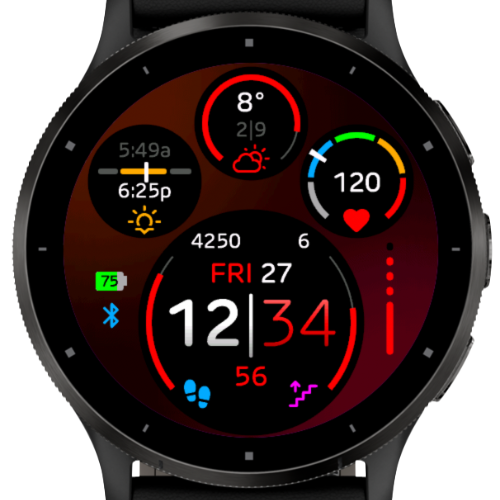 |
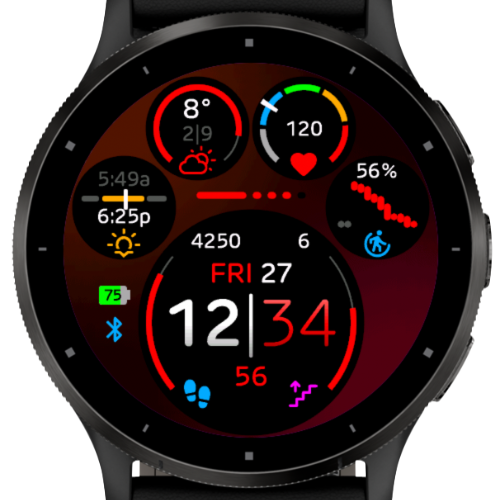 |
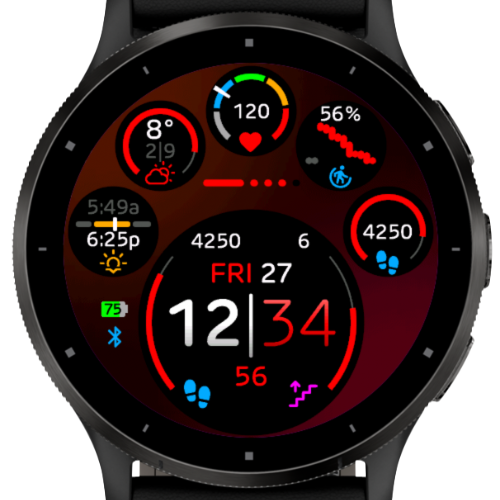 |
|
| Left | 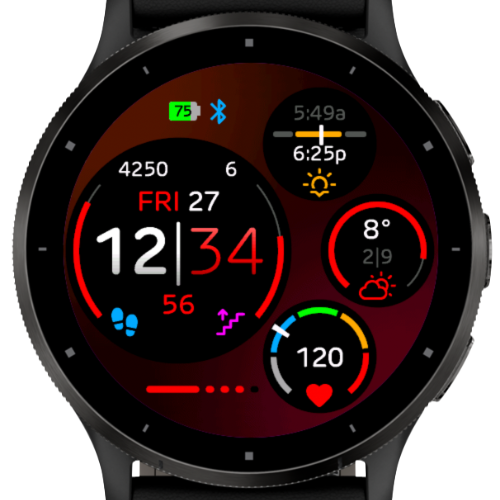 |
 |
 |
Layout
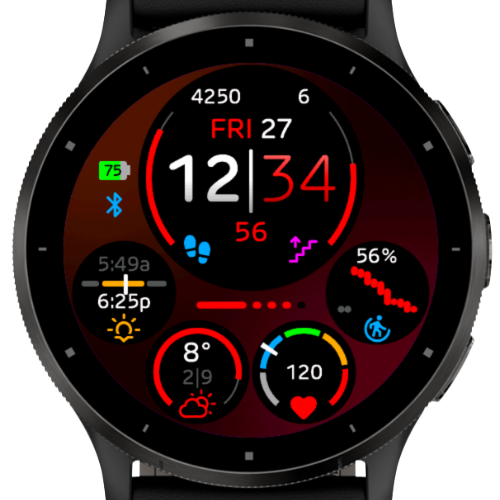
Number of satellite dials (the time dial is always visible). Options are:
- Time + 3 Dials
- Time + 4 Dials (default)
- Time + 5 Dials
- Time + 6 Dials
Time Position
Set the position of the time dial. When 6 satellite dials are shown on round watches, time is always central regardless of this setting. Options are:
- Top
- Right
- Bottom
- Left (default)
Theme Colour
The theme colour is used for the “accent” colour on the watch face e.g. for the day of the week, the minutes and seconds, and the various meters and dials. The background colour is also chosen based on the theme colour. Choose from one of 16 possible colours.
Background
There are 5 different gradient backgrounds available. The Auto setting chooses the most suitable background for the current theme colour. The None setting turns off the background (black). Some MIP watches render only the central part of the background, using fewer colours, due to memory constraints.
Draw Gradients
Controls whether colour gradients are used to render the time.
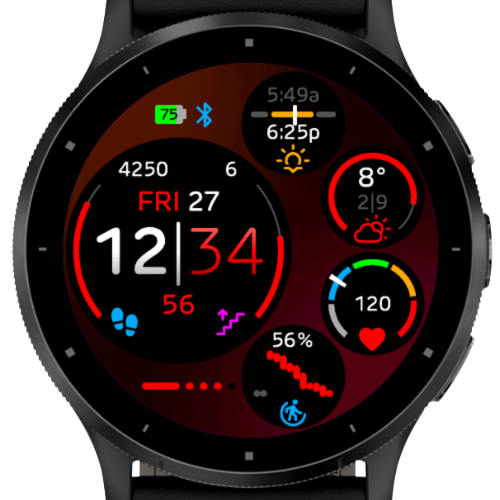
Colourful Icons
 |
 |
|---|---|
| Colourful Icons On (default) | Colourful Icons Off |
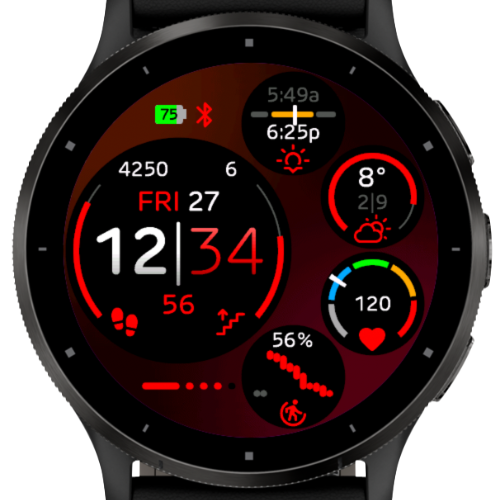
If turned on, complication icons are shown in distinct colours e.g. blue for body battery, purple for floors climbed. If turned off, all icons are shown in the theme colour.
Some icons, like the weather, are always shown in the theme colour; other icons, like the battery, are always shown in a distinct colour, regardless of this setting.
Always On
This sub-menu is only available on AMOLED devices, and affects the display when always on mode is enabled and active.
Brightness
The watch already dims the display when in always on mode; Orbula dims the display further. This setting controls the overall brightness of the watch face. 100% is the watch’s default always on brightness. Default is 50%.
Time Brightness
Orbula allows separate control of the time brightness in always on mode e.g. to allow the time to stand out from the rest of the watch face. Default is 80%.
Time
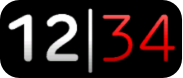 |
White semibold hours, white semibold bar separator, theme-colour light minutes (default). |
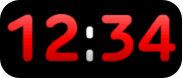 |
Theme-colour bold hours and minutes, white bold colon separator. |
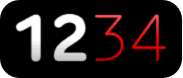 |
White bold hours, no separator, theme-colour extralight minutes. |
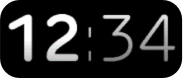 |
White semibold hours, grey extralight colon separator, grey light minutes. |
| Time | Leading Zero Off 12-hour |
Leading Zero On 12-hour |
Leading Zero Off 24-hour |
Leading Zero On 24-hour (Military Time) |
|---|---|---|---|---|
| 6am | 600 | 0600 | 600 | 0600 |
| noon | 1200 | 1200 | 1200 | 1200 |
| 6pm | 600 | 0600 | 1800 | 1800 |
| midnight | 000 | 0000 | 000 | 0000 |
Time Format
Controls whether the time is shown in 12-hour or 24-hour format. The Auto setting (default) means that Orbula will respect the general Time Format setting on your watch. Setting 12 Hour or 24 Hour will override the general watch setting. See also Show Hours Leading Zero.
Hours Font/Hours Colour
Control the appearance of the hours. Options for the font are, from thinnest to thickest:
- ExtraLight
- Light
- Semibold
- Bold
Options for the colour are:
- Theme Colour
- Grey
- White
If Draw Gradients is turned on, a colour gradient will be shown.
Separator
Controls the separator between the hours and the minutes. Options are:
- None (no separator: recommend choosing different fonts for hours and minutes)
- | (bar, default)
- : (colon)
Separator Font/Separator Colour
Control the appearance of the separator.
Minutes Font/Minutes Colour
Control the appearance of the minutes.
Show Hours Leading Zero
If the hour number would be a single digit, add a zero before that digit. Default is off.
Show Seconds
Default is on. Note that AMOLED devices will always hide the seconds in always on mode, regardless of this setting.
Side Meters
The Left Side Meter and Right Side Meter settings control the data visible on each side of the time. Only values that have a goal (e.g. steps goal) or maximum (e.g. 100% for battery) can be shown here. The numerical value is shown above each meter. Options are:
| Icon | Name | Notes |
|---|---|---|
| Off | Hide the meter. | |
 |
Battery (%) | Current battery level in %. |
|
Battery (Days) | Current battery level, with estimated remaining battery life in days or hours. |
 |
Steps | |
 |
Calories | Calories burnt for the current day. Calories goal is set manually using the Calories Goal setting. |
|
Active Calories | An estimate of active calories burnt for the current day, based on gender, age, height, weight, and total calories. Active calories goal is set manually using the same Calories Goal setting as above. |
 |
Floors Climbed | Only supported by watches with barometers. |
 |
Active Minutes (Weekly) | |
 |
Recovery Time | Maximum value is 96 hours (4 days). |
 |
Stress | |
 |
Body Battery | If a current value is not available, an historical value up to 10 minutes old will be shown. |
 |
Run VO2 Max | Maximum value is 60. |
 |
Bike VO2 Max | Maximum value is 60. |
 |
Oxygen Saturation | |
 |
Solar Input | Solar watches only. |
 |
Wheelchair Pushes | In wheelchair mode only. |
Dials
Up to 6 dials may be shown in addition to the time dial, depending on the selected layout.
| Dial | Name | Notes |
|---|---|---|
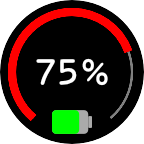 |
Battery (%) | Current battery level in %. |
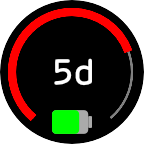 |
Battery (Days) | Current battery level, with estimated remaining battery life in days or hours. |
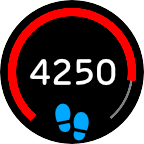 |
Steps | |
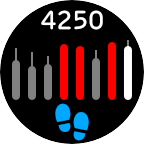 |
Steps (Daily) | Each bar represents the number of steps on that day. The leftmost bar is one week ago, the rightmost white bar is today. A theme-coloured bar means the goal was achieved that day; otherwise, the bar is grey, and the thin grey line shows the goal value. |
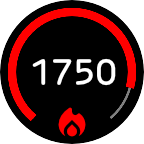 |
Calories | Calories goal is set manually using the Calories Goal setting. |
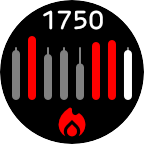 |
Calories (Daily) | Calories goal is set manually using the Calories Goal setting, and is used for all days |
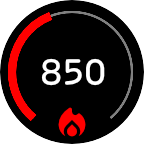 |
Active Calories | An estimate of active calories burnt for the current day, based on gender, age, height, weight, and total calories. Active calories goal is set manually using the same Calories Goal setting as above. |
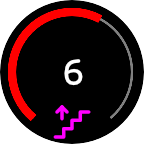 |
Floors Climbed | |
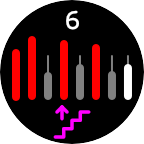 |
Floors Climbed (Daily) | |
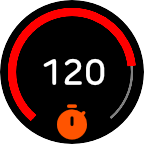 |
Active Minutes (Weekly) | |
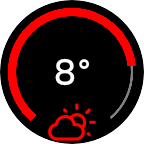 |
Weather | Current forecast temperature and condition. Dial min/max temperatures are for the whole day (Garmin Weather) or the remainder of the day (OpenWeather). Temperature is in degrees celcius (metric) or farenheit (statute), based on the Temperature Units setting on your watch. |
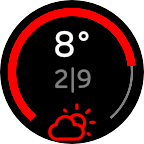 |
Weather (Min/Max) | Current forecast temperature and condition, plus min/max temperatures for the whole day (Garmin Weather) or the remainder of the day (OpenWeather). Temperatures are in degrees celcius (metric) or farenheit (statute), based on the Temperature Units setting on your watch. |
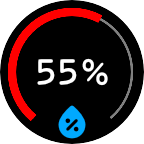 |
Humidity | |
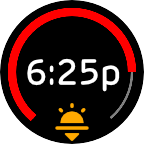 |
Sunrise/Sunset | Time and type of next “sun event” (sunrise or sunset). Dial represents time between previous and next sun events e.g. how far through daytime you are. |
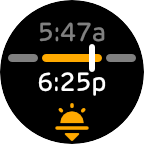 |
Sunrise/Sunset (Today) | Sunrise time (top), sunset time (bottom) and next “sun event” icon (sunrise or sunset). Time of next sun event today is shown in white. Bar represents the current 24 hours: grey is night, yellow is day, and white pointer is the current time. |
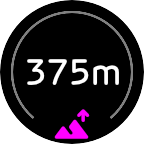 |
Altitude | Current altitude in m (metric) or ft (statute), based on the Elevation Units setting on your watch. |
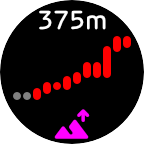 |
Altitude (Graph) | Each of the 12 bars represent the min and max altitude for a 5-minute period by default i.e. 1 hour total. The graph duration can be changed using the Graph Duration setting. A grey circle is shown if no value is available for that time period. |
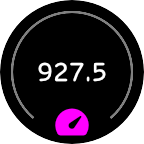 |
Pressure | Current pressure in mb/hPa, inHg or mmHg, based on the Pressure Units setting. |
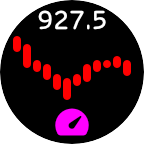 |
Pressure (Graph) | Pressure in mb/hPa, inHg or mmHg, based on the Pressure Units setting. The graph duration can be changed using the Graph Duration setting. |
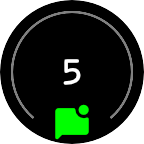 |
Notifications | Number of unread phone notifications. Icon is shown in grey if there are no notifications. |
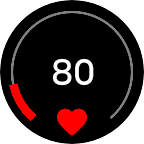 |
Heart Rate | The minimum value is your resting heart rate, or zone 1 minimum if not available. The maximum value is zone 5 maximum. Heart rate zones are taken from your user profile. |
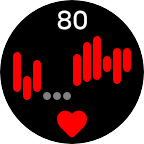 |
Heart Rate (Graph) | The graph duration can be changed using the Graph Duration setting. |
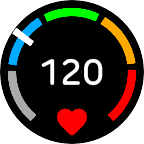 |
Heart Rate (Zones) | The 5 heart rate zones (Z1, Z2, Z3, Z4, Z5) are taken from your user profile. |
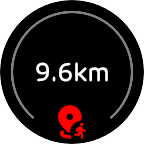 |
Weekly Run Distance | Distance in km (metric) or mi (statute), based on the Distance Units setting on your watch. |
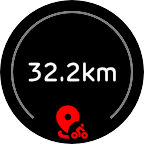 |
Weekly Bike Distance | Distance in km (metric) or mi (statute), based on the Distance Units setting on your watch. |
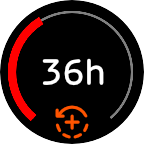 |
Recovery Time | Maximum value is 96 hours (4 days). |
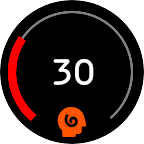 |
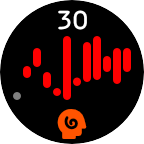
Stress | |
 |
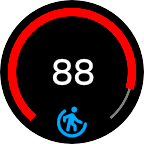
Stress (Graph) | The graph duration can be changed using the Graph Duration setting. |
 |
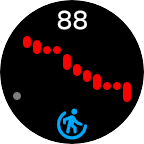
Body Battery | |
 |
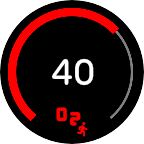
Body Battery (Graph) | The graph duration can be changed using the Graph Duration setting. |
 |
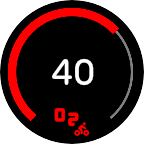
Run VO2 Max | Maximum value is 60. |
 |
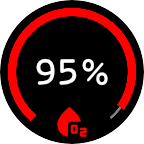
Bike VO2 Max | Maximum value is 60. |
 |
Oxygen Saturation | |
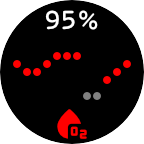 |
Oxygen Saturation (12h Graph) | The graph duration is always 12 hours, as oxygen saturation is recorded infrequently. |
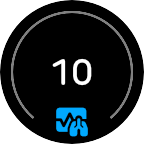 |
Respiration Rate | In breaths-per-minute. |
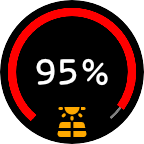 |
Solar Input | Solar watches only. |
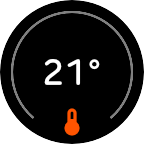 |
Thermometer | Temperature, as measured by your watch, in degrees celcius (metric) or farenheit (statute), based on the Temperature Units setting on your watch. |
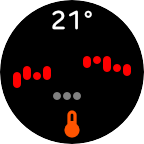 |
Thermometer (Graph) | Temperature, as measured by your watch, in degrees celcius (metric) or farenheit (statute), based on the Temperature Units setting on your watch. The graph duration can be changed using the Graph Duration setting. |
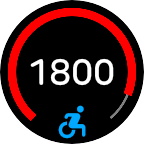 |
Wheelchair Pushes | In wheelchair mode only. |
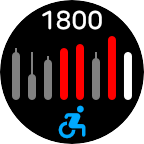 |
Wheelchair Pushes (Daily) | In wheelchair mode only. |
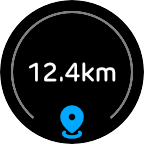 |
Distance | Total distance for the current day, in km (metric) or mi (statute), based on the Distance Units setting on your watch. |
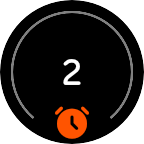 |
Alarms | Number of alarms set on your watch. |
Icon Row
Choose to show up to 3 additional icons outside of the dials. Defaults are Battery (%) and Bluetooth. Options are:
| Icon | Name | Notes |
|---|---|---|
| None | Do not show an icon in this position. | |
    |
Battery (%) | Current battery level in %. Level shown in yellow if less than 20%, or red if less than 10%. + symbol indicates charging. |
    |
Battery (Days) | Current battery level, with estimated remaining battery life in days or hours. |
   |
Battery | Current battery level icon only. |
  |
Alarms | Icon will be shown in colour if you have at least one alarm set. |
  |
Bluetooth | Icon will be shown in colour if your watch has a Bluetooth connection to your phone. |
  |
Notifications | Icon will be shown in colour if you have at least one unread phone notification. |
Line Meter
Choose what data the line meter shows. The icon is only shown if the Line Meter Icon setting is turned on. Options are:
| Icon | Name | Notes |
|---|---|---|
| None | Hide the meter. | |
| None | Move Bar | See Move Bar section below. |
|
Battery | |
|
Stress | |
|
Body Battery | |
|
Oxygen Saturation | |
|
Solar Input | Solar watches only. |
Move Bar
The Move Bar is a reminder to stay active. It has 5 segments. The first, longer segment, lights up after 1 hour of inactivity. Then, each shorter segments lights up after an additional 15 minutes of inactivity. You can clear the Move Bar by taking a few steps.
 |
Active within the last hour. |
 |
Inactive for 1 hour. |
 |
Inactive for 1 hour 15 mins. |
 |
Inactive for 1 hour 30 mins. |
 |
Inactive for 1 hour 45 mins. |
 |
Inactive for 2 hours or longer. |
Line Meter Icon
Turn on to show an icon next to the line meter. An icon is never shown for the Move Bar, because its appearance is already distinguishable from other uses of the Line Meter.
OpenWeather Key
It is currently only possible to enter an OpenWeather key using the Connect IQ mobile app. For more information about how to use Orbula’s OpenWeather feature, see the OpenWeather Integration section below.
Calories Goal
Goal value for Calories and Active Calories side meters and dials. Choose a value between 200 and 8,000 Calories/kcal. Defaults to 2,000.
Graph Duration
Time period used by “(Graph)” dials, except for Oxygen Saturation (12h Graph). Choose a value between 1 and 6 hours. Defaults to 1 hour.
Pressure Units
Units used for the Pressure and Pressure (Graph) dials. Options are:
- mb/hPa: millibars/hectopascals (default)
- inHg: inches of mercury
- mmHg: millimeters of mercury
Note that if your watch has a separate Pressure Units setting, this will not be used, due to a technical limitation.
OpenWeather Integration
OpenWeather is a popular third-party weather service, offered as an alternative to Garmin’s own built-in weather service.
You will need a free OpenWeather API key, which you the need to enter in the “OpenWeather Key” box in Orbula’s settings in the Connect IQ mobile app:
- Sign up for a free OpenWeather account if you don’t already have one. You will receive an account confirmation e-mail.
- Click on the “Verify your email” button in the confirmation e-mail. This will log you in to your OpenWeather account.
- Click on the “API keys” tab. You will see that an API key has already been generated for you. Copy, or write down this key.
- In Orbula’s settings in the Connect IQ app, paste the key into the “OpenWeather Key” box, and save.
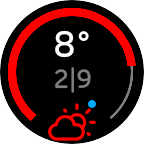
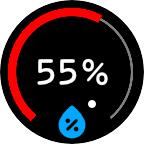
Weather-based dials will now show a coloured dot, indicating the status of the OpenWeather data. It may take up to 5 minutes for the weather data to appear after entering your key.
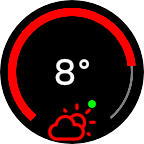
| Dot Colour | Meaning |
|---|---|
| Grey | No internet connection, or other request error. Ensure your watch is paired with your phone, and that your phone has internet access. |
| Yellow | Your location can’t be determined, so Orbula can’t request the weather for your location. Orbula initially requires a location from Garmin Weather, so ensure your watch is paired with your phone, and that your phone has internet access. Orbula will store your current location in case a live location is no longer available. |
| Red | Invalid API Key. Check that you have entered a valid OpenWeather key. |
| Orange | Other HTTP error. |
| Blue | A request to OpenWeather has been queued, and will be made within the next 5 minutes. If you have just set up OpenWeather, no data will be visible until the initial request has completed. |
| White | Successfully sent a request to OpenWeather; now awaiting the reply. |
| Green | Up-to-date weather information successfully received. This indication will automatically disappear after 1 minute. |